Which method should you use?
| If you want to | Use | You end up with |
|---|---|---|
| Capture a quick memo | Voice Memos | An audio recording, with a transcript where supported. |
| Keep audio with other notes | Apple Notes | A note containing the recording and its transcript. |
| Record a phone call | Call recording in the Phone app | A recording and transcript in Notes, where available. |
| Turn a meeting into finished notes | Convoxa | A transcript with speaker labels and an editable note. |
Apple's transcription features depend on your device, language, and region, so check that yours are supported before relying on one.
Use Voice Memos or Notes for simple recordings
If you only need the words, start with what's on your phone. Voice Memos is the quickest way to capture audio, and Notes can record and transcribe audio in the same place as your other notes.
Both are good for a memo or a short conversation. You'll still need to work through the transcript yourself to pull out what was decided and what happens next.
Record a phone call
On supported iPhones, Apple's call recording runs from the call screen. Both people hear an audio notice that the call is being recorded, and the recording and transcript are saved to a Call Recordings folder in Notes. The feature isn't available in every country or language. Apple says the European Union is among the places it isn't offered.
Convoxa's call capture is on Mac. For a phone call on your iPhone, use Apple's feature. For a Zoom, Meet, or Teams call, see how to record on Mac without a bot.
Turn an in-person conversation into notes with Convoxa
- Install Convoxa on your iPhone. It requires iOS 26 or later.
- Choose a mode. On Device needs a device with Apple Intelligence and works offline once set up. Cloud is our most accurate option and covers 60+ languages.
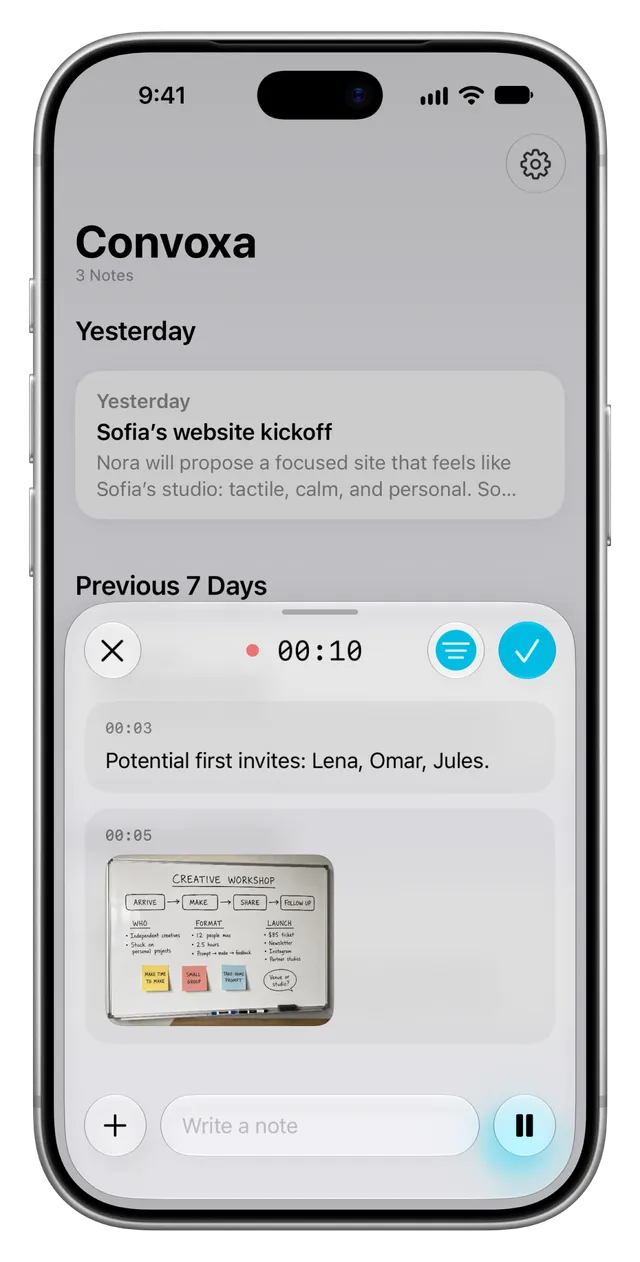
- Start recording. Use the app, the Lock Screen, Control Center, Shortcuts, or the Action Button on supported iPhones. Apple Watch can record too, when paired with an iPhone.
- Put your phone down and stay in the conversation. Place it where it can hear everyone, rather than in a pocket or bag.
- Add what the audio will miss. Take a photo of a whiteboard or type a quick thought while you record.
- Check the note. AI-generated notes can make mistakes, so confirm names, numbers, and dates. Source markers and the timeline take you back to the original conversation.
Five ways to get a better transcript
- Move closer. Put the iPhone near the people speaking, on a stable surface.
- Reduce background noise. A quieter table beats any amount of cleaning up afterward.
- Check your language first. On Device and Cloud support different languages. See our language guide.
- Make a test recording. Do this before anything important, especially if you plan to work offline.
- Say names clearly. Introductions help you check speaker labels and spellings later.
Ask before you record
Let people know you're recording and how you'll use the notes. Consent rules vary by location, and some places require everyone's agreement. Read our guide to recording consent before you start.