The short answer
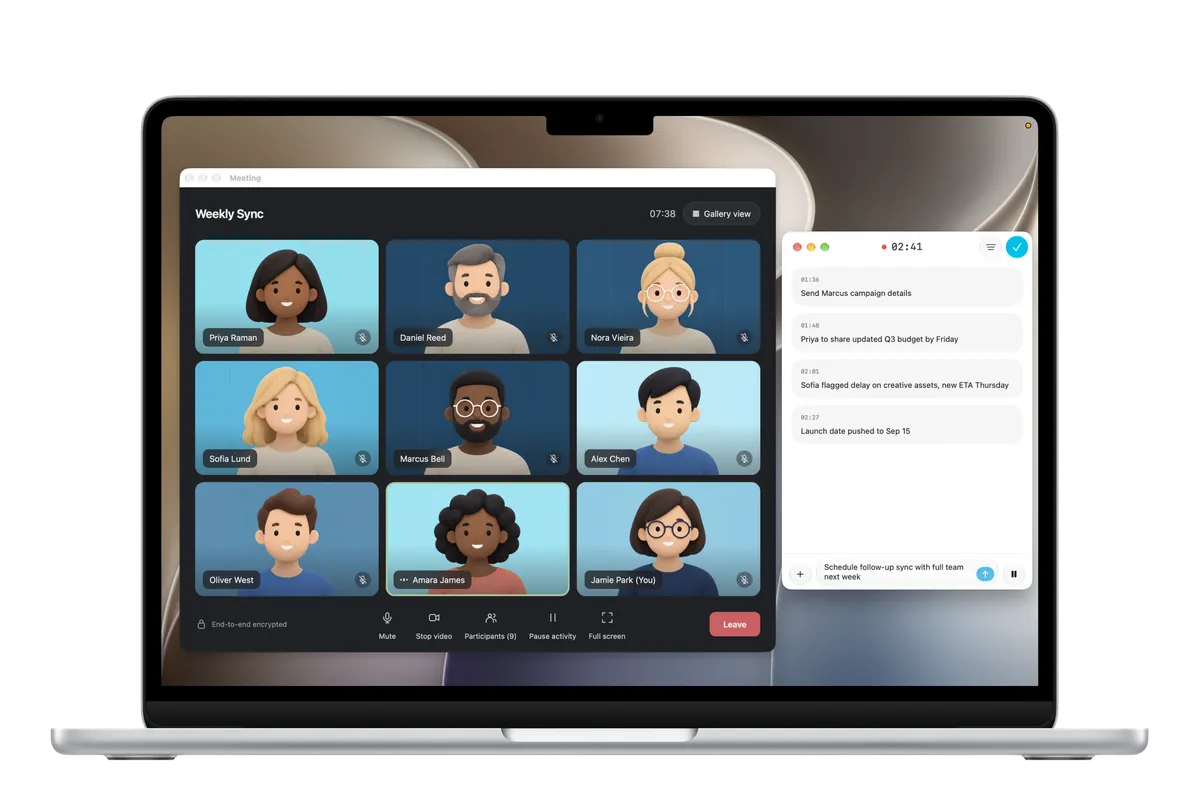
Use an app that records on your Mac rather than one that joins the call. A bot-free recorder captures your microphone and your Mac's audio, so it hears the same conversation you hear. Nothing is added to the participant list, and it works with whichever video app you already use.
Why people want to skip the bot
A meeting bot arrives as another attendee. That has some advantages: it's visible, and it can work when you aren't there. It also has costs. A stranger's name in the participant list can change the tone of a client call, some hosts remove bots or block them, and a bot has to be set up for each meeting platform.
Recording from your own Mac avoids those problems. It also means the responsibility for telling people sits with you, which we'll come back to.
How to record a call with Convoxa
- Install Convoxa on your Mac. It requires macOS 26 or later.
- Allow microphone and system-audio access when asked. Convoxa needs both to capture you and the other people on the call.
- Make a short test recording. Play a few seconds of a video and speak, then confirm both sides appear in the transcript.
- Choose On Device or Cloud. On Device processes the recording on your Mac with Apple Intelligence. Cloud uses Convoxa AI and is our most accurate option.
- Tell the room you're recording, then start from the app or the menu bar when the call begins.
- Review the note. Check names, numbers, and deadlines, then use source markers and the timeline to go back to the original conversation.
Does this work with Zoom, Google Meet, and Teams?
Yes. Because Convoxa records your microphone and Mac audio rather than connecting to a meeting platform, it isn't tied to one service. The same steps apply to Zoom, Google Meet, Microsoft Teams, and other calls you can hear on your Mac.
Bot, built-in recording, or recording on your Mac?
| Method | What participants see | Works best when |
|---|---|---|
| Meeting bot | An extra participant in the call. | A team wants a shared assistant, including for meetings you can't attend. |
| The platform's own recording | The platform's recording notice, where it shows one. | The host wants a video file and has permission to record. |
| An app on your Mac | Nothing automatic, so you need to tell them. | You're in the meeting and want notes without adding anyone to it. |
Bot-free doesn't mean secret
Without a bot or a platform banner, people may have no way of knowing they're being recorded unless you say so. Tell them at the start and agree how the notes will be used. In some places everyone must consent, and our guide to recording consent explains the basics. It's also worth checking your company's policy and any client contract.
Keep sensitive calls on your Mac
With On Device, the transcript, speaker labels, and note are all made on your Mac, and recording content isn't uploaded for processing. iCloud sync is a separate setting. To keep a recording on that device only, also turn off sync and don't share it or enhance the note with Cloud. Our On Device and Cloud guide covers the details.