Meetings on Apple devices
From the client call to the next step.
Convoxa turns recorded conversations, photos, and typed thoughts into editable meeting notes on iPhone, iPad, and Mac. Record from your Apple Watch, capture a Mac call without a meeting bot, and return to the original conversation behind an insight.
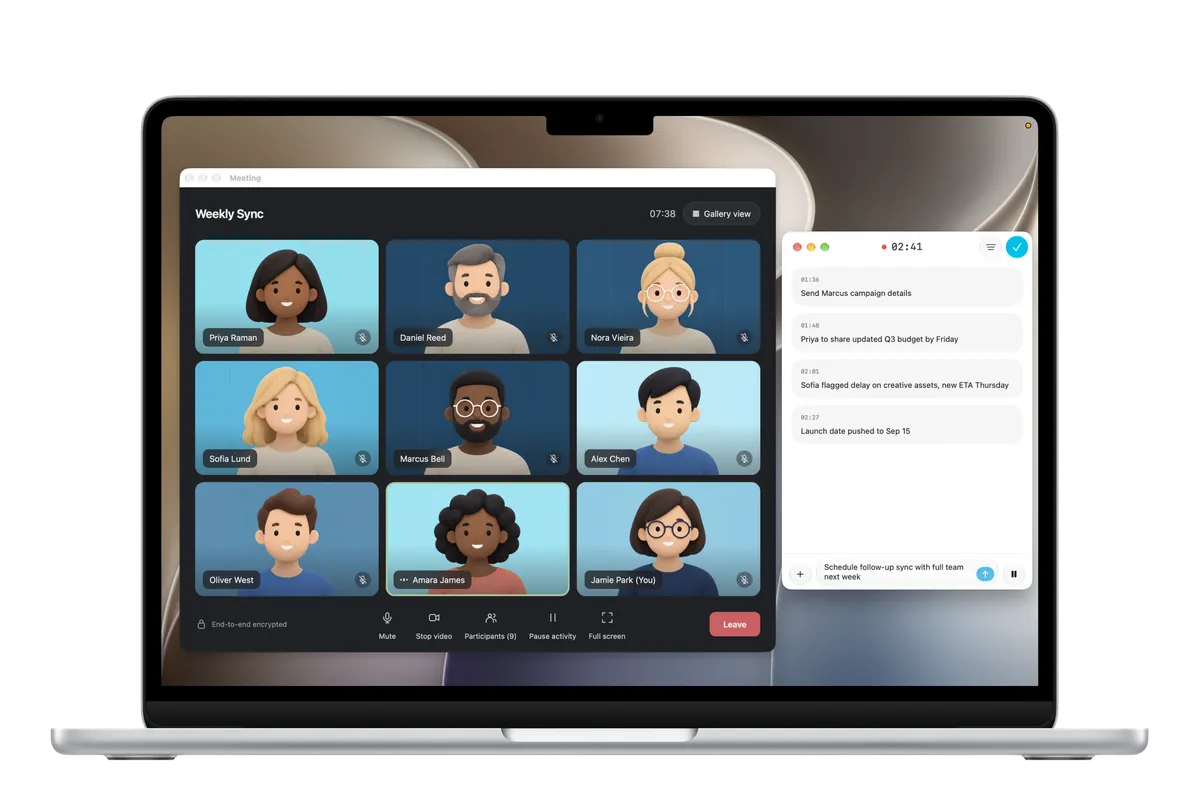
Capture a Mac meeting without inviting a bot
Convoxa records your microphone and Mac audio directly. It sits alongside your call, so you can capture the discussion without adding another participant to the meeting. Use it for a client check-in, a founder discussion, or a project review.
Before a first call, allow the requested microphone and system-audio access and make a short test recording. Let participants know you are recording and agree on how the notes will be used.
Start an in-person recording from iPhone or Apple Watch
On iPhone, you can start through the Action Button on supported models, Lock Screen, Control Center, or Shortcuts. These controls make it easier to begin when the discussion starts.
Apple Watch can record, pause, and finish on your wrist without the iPhone app open. Recordings wait on the Watch until they can transfer to a paired iPhone for processing. The Watch captures the audio; it does not generate the finished note itself.
Include the things nobody said out loud
A meeting can turn on a whiteboard sketch or a detail in a slide. While recording on iPhone, iPad, or Mac, add photos and typed context so the generated note can draw on what you saw as well as what was said. In On Device mode, notes use the text recognized in photos and PDFs rather than the images themselves.
For a client project, that might mean recording the discussion, photographing the revised scope on a whiteboard, and adding a quick reminder about the deadline. Those inputs can become part of the same structured note.
Check the decisions before you act
- Review the generated note for decisions, commitments, and next steps.
- Open a source marker to check the conversation behind an insight, or use the timestamped timeline to replay the relevant audio.
- Edit the note and confirm names, numbers, and deadlines before sharing it. AI-generated notes can make mistakes.
Move between your devices
iCloud sync is included on Free and Pro. With sync enabled, your library of recordings, transcripts, and notes syncs through your personal iCloud account. Review on iPad or open notes in separate Mac windows when you need more space.
Convoxa requires iOS 26, iPadOS 26, macOS 26, or watchOS 26 for the corresponding app. The Watch workflow requires a paired iPhone. Available transcription languages can vary by device.
Read about processing and iCloud privacy, check language support, or compare the Free and Pro plans.